OpenDroneID & Android Integration
Executive Summary
OpenDroneID acts as a digital beacon. Any smartphone within range can pick up the signal using the free OpenDroneID app. This provides public accountability and situational awareness.
Theory & Concepts
1. The Broadcast Mediums
Standard Remote ID modules must broadcast on specific frequencies:
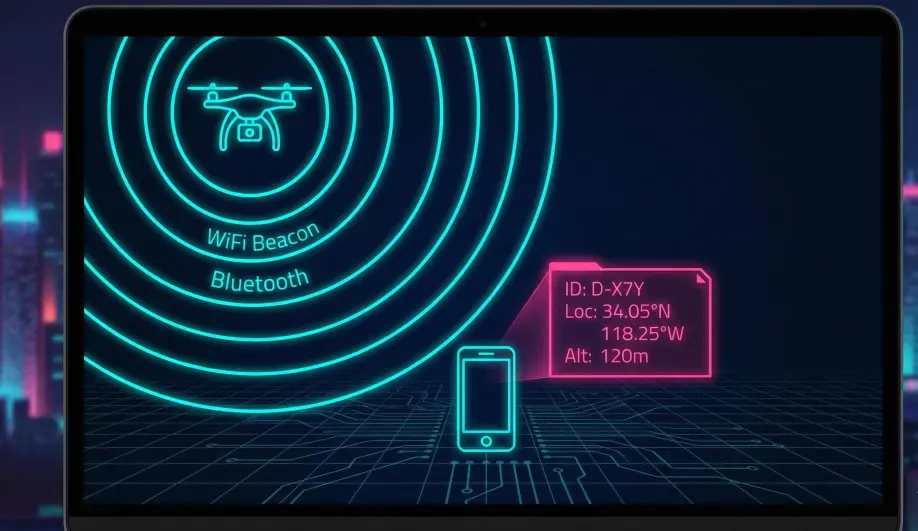
- Wi-Fi Beacon (NaN): Uses the "Neighbor Awareness Networking" protocol. High bandwidth, medium range.
- Bluetooth 4.0 (Legacy): Short range, widely compatible.
- Bluetooth 5.0 (Long Range): Can reach up to 1km+, but requires modern hardware.
2. What the Public Sees
Anyone with the app sees:
- Drone Position: Lat/Lon, Altitude (Height), Direction.
- Velocity: Horizontal and Vertical speed.
- Operator Position: Where the pilot is standing.
- ID: The Serial Number or Session ID.
Codebase Investigation
1. Data Limits: AP_OpenDroneID.h
Located in libraries/AP_OpenDroneID/AP_OpenDroneID.h.
- Speed Cap:
ODID_MAX_SPEED_His 254.25 m/s. Anything faster is clipped. - Altitude Cap:
ODID_MAX_ALTis 31767.5 m. - Direction: 0-360 degrees.
2. MAVLink HUD Integration?
Currently, MAVLink HUD acts as a GCS for your drone. It does not contain an SDR to sniff other drones.
- Potential Future: If the connected radio (e.g., TBS Crossfire or ELRS) reported nearby traffic via ADSB-style messages, the HUD could display them.
- Current State: You rely on the separate OpenDroneID app to see others.
How To: Test Visibility
1. Download the App
Get the "OpenDroneID" app from the Google Play Store (or GitHub).
2. Power Up
Power your drone (with props off). Wait for GPS lock.
3. Scan
Open the app on your phone.
- Result: You should see your drone's icon appear on the map.
- Details: Tap the icon to see the "Self ID" text and your Operator ID.
- Troubleshooting: If you don't see it, ensure your phone supports Bluetooth 5.0 or Wi-Fi NAN, and that you are physically close to the module.