Optical Flow: Sensor Drivers & Quality
Executive Summary
Optical Flow sensors (like the PX4Flow or HereFlow) give drones the ability to hold position without GPS. They work like an optical mouse, tracking the movement of texture on the ground. However, they are highly sensitive to lighting, focus, and vibration. ArduPilot's driver layer is responsible for normalizing this complex data into a format the EKF can consume.
Theory & Concepts
1. How it Works (The Lucas-Kanade Method)
Most flow sensors use a variation of the Lucas-Kanade algorithm.
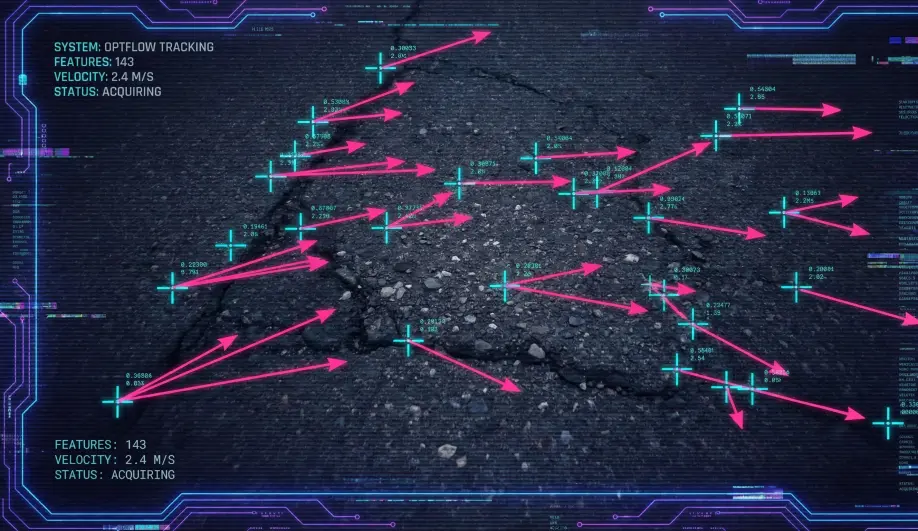
- Frame Comparison: The sensor takes two photos in rapid succession.
- Feature Tracking: It identifies "corners" or high-contrast edges in Frame 1 and finds them in Frame 2.
- Vector Calculation: The distance these features moved (in pixels) divided by the time (dt) gives the Flow Rate.
2. The "Aperture Problem" (Texture Failure)
If you fly over a featureless surface (like a white tile floor or calm water), the sensor sees nothing.
- The Result: The algorithm cannot find matching features. It reports zero flow or chaotic noise.
- ArduPilot's Defense: The
Qualitymetric. If the sensor can't find features, it drops the Quality score. The EKF sees this and refuses to use the data, triggering a failsafe (Land/AltHold) rather than flying away.
3. The "Blur" Problem (Focus & Vibration)
- Focus: If the lens is out of focus, edges become gradients. The feature tracker fails. A sharp focus at the flying height is critical.
- Motion Blur: If the drone vibrates or rotates too fast, the image smears. The features disappear. This is why good lighting (fast shutter speed) and vibration isolation are mandatory for FlowHold.
- Light Flicker: Indoor lights flicker at 50Hz or 60Hz. This can beat-frequency with the camera shutter, causing "rolling bands" in the image that confuse the flow algorithm.
Architecture (The Engineer's View)
1. Data Structure
The driver returns a OpticalFlow_state struct:
flowRate(Vector2f): The total angular motion seen by the camera (rad/s).bodyRate(Vector2f): The angular motion caused by the drone's rotation (from a gyro).quality(uint8_t): Confidence score (0-255).
2. Gyro Compensation (The "Fake Motion" Fix)
- Integrated Gyro (PX4Flow/HereFlow): These sensors have a built-in rate gyro. They report their own rotation as
bodyRate. This is ideal because the gyro and camera are physically coupled and time-synchronized on the sensor board. - No Gyro (CXOF): Cheaper sensors only report flow. The driver "fakes" the
bodyRateby copying the Flight Controller's main Gyro (AP::[ahrs](/field-manual/mavlink-interface/ahrs.html)().get_gyro()).- Risk: If the main Gyro suffers from vibration aliasing, it corrupts the Flow compensation too.
- Latency: There is a time delay between the camera capturing the frame and the FC reading the Gyro, leading to imperfect compensation during rapid maneuvers.
3. Surface Quality
Different drivers scale "Quality" differently to match the ArduPilot 0-255 standard.
- CXOF: Raw values (64-78) are expanded to fit 0-255.
- PX4Flow: Native 0-255 output.
- Threshold:
FLOW_MIN_QUALtells the EKF when to stop trusting the sensor.
Key Parameters
| Parameter | Default | Description |
|---|---|---|
FLOW_TYPE |
1 | 1=PX4Flow, 4=CXOF, 6=UAVCAN (HereFlow). |
FLOW_POS_X/Y/Z |
0 | Sensor offset. Critical for lever-arm compensation. |
FLOW_MIN_QUAL |
50 | Minimum quality to fuse data. Increase this if the drone twitches in low light. |
Source Code Reference
- Frontend Logic:
AP_OpticalFlow::update()
Practical Guide: Focusing the Lens
The #1 reason Optical Flow fails is a blurry lens.
The Problem
Most sensors ship focused for "Infinity" (Outdoor). If you fly indoors at 1.5m, the floor is blurry.
The Procedure
- Connect USB: Power the drone. Connect to Mission Planner.
- Open OptFlow View: Press Ctrl+F -> "Mavlink Inspector" -> Look for
OPTICAL_FLOWmessage. - Monitor Quality: Look at the
qualityfield. - The Box Test: Put a textured object (patterned box, rug) on the floor 1.5m away (or your target flight height).
- Rotate Lens: Manually twist the sensor lens. Watch the
qualityscore.- Goal: Maximize the score (usually > 200).
- Verify: Move the box slightly. The values should change rapidly.
- Lock it: Use a tiny drop of hot glue or the set screw to lock the lens focus.