MSP & DJI OSD Integration
Executive Summary
For years, the FPV world was divided: ArduPilot users used MAVLink, and Betaflight users used MSP (MultiWii Serial Protocol). With the rise of DJI FPV, Walksnail, and HDZero, these digital video systems primarily support MSP. To use them, ArduPilot must emulate a Betaflight flight controller, speaking the MSP language to trick the goggles into displaying telemetry.
Theory & Concepts
1. The "Impulsor" Deception
Digital OSD units (like the DJI Air Unit) query the flight controller: "Who are you?"
- The Answer: ArduPilot replies "I am Betaflight" (
BTFL). - Why? If it replied "ArduPilot," the DJI unit would ignore it.
- The Translation: ArduPilot takes its internal state (AHRS, Battery) and packages it into MSP messages (e.g.,
MSP_ATTITUDE,MSP_BATTERY).
2. Canvas Mode (DisplayPort)
Older "Native" DJI OSDs only supported a fixed list of elements (Voltage, Timer).
- The Solution: Canvas Mode (MSP DisplayPort).
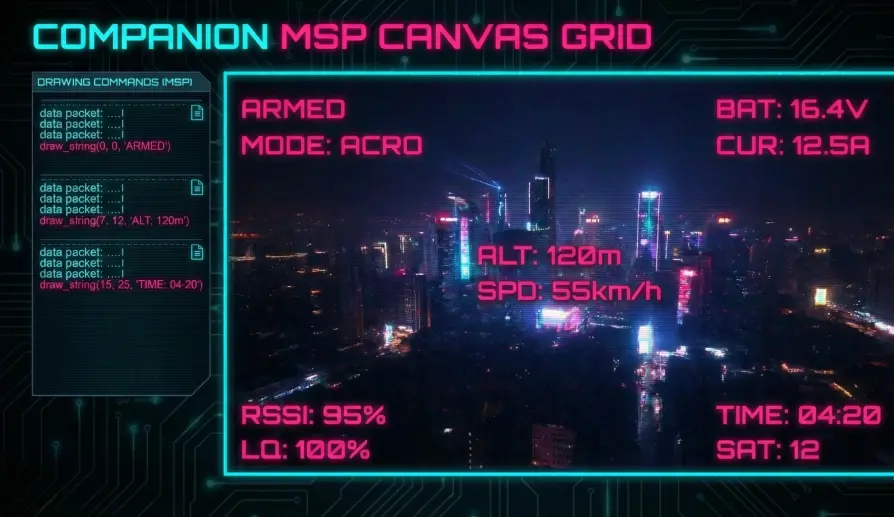
- Mechanism: Instead of sending values ("Voltage = 12.6"), ArduPilot sends Drawing Commands ("Draw '12.6V' at Row 10, Col 4").
- Benefit: This allows ArduPilot to render its entire OSD menu system, radar screens, and custom fonts on the HD goggles, bypassing the goggles' internal limitations.
Architecture (The Engineer's View)
1. The Backend (AP_MSP)
This library handles the serial protocol.
- Weighted Fair Queuing: It prioritizes critical attitude updates over slow battery updates to ensure the artificial horizon is smooth.
- Code Path:
msp_process_out_fc_variant()is where the "BTFL" handshake happens.
2. The Renderer (AP_OSD)
- Abstraction:
AP_OSDdraws to a virtual screen buffer (30x16 chars). - Driver: The
AP_OSD_MSP_DisplayPortbackend reads this buffer and generates the MSP commands (MSP_DISPLAYPORT_WRITE_STRING) to mirror it on the remote screen.
Key Parameters
| Parameter | Default | Description |
|---|---|---|
SERIALx_PROTOCOL |
33 | 33=DJI FPV (Basic), 42=DisplayPort (Canvas). |
OSD_TYPE |
1 | 1=Analog/Native, 5=MSP DisplayPort. |
MSP_OPTIONS |
0 | Bit 0: Enable telemetry mode. |
Source Code Reference
- Emulation Logic:
AP_MSP_Telem_DJI::msp_process_out_fc_variant() - Canvas Writer:
AP_MSP_Telem_Backend::msp_displayport_write_string()
Modern Alternative: Direct AR
While MSP emulation is excellent for traditional FPV goggles, it is limited by the VTX bandwidth and the 30x16 character grid.
MAVLink HUD takes a different approach:
- High Resolution: Renders a 1080p/4K interface on your Android device.
- No VTX Required: Telemetry comes over the ELRS radio link.
- Augmented Reality: By connecting USB-C AR glasses, you get a transparent "Glass Cockpit" overlay without blocking your line of sight.
For a list of compatible displays, see our Supported Hardware Guide.
Practical Guide: DJI & Walksnail Setup
The days of "Custom OSD" are over. Use DisplayPort.
Step 1: Physical Connection
Connect the Air Unit (DJI/Walksnail) to a spare UART (e.g., SERIAL2).
- TX -> RX
- RX -> TX
- GND -> GND
Step 2: ArduPilot Config
- Protocol: Set
SERIAL2_PROTOCOL = 42(DisplayPort). - Baud: Set
SERIAL2_BAUD = 115(115200). - OSD Type: Set
OSD_TYPE = 5(MSP_DisplayPort). - Reboot.
Step 3: Goggle Config
- DJI (V2/2): Ensure "Canvas Mode" (or "Custom OSD") is enabled in the goggles menu.
- Walksnail: It works out of the box.
- Verification: You should see the ArduPilot initialization text ("ArduCopter V4.x.x") on your HD feed. If you see "Waiting for OSD...", check your TX/RX swap.