Avoidance Architecture & Data Fusion
Executive Summary
ArduPilot's avoidance system is a multi-layered stack that ingests raw sensor data (Lidar, Radar, Depth Cameras), fuses it into a unified "Boundary," and then modifies the vehicle's desired velocity to prevent collisions.
The architecture separates the Sensor Driver (AP_Proximity) from the Control Logic (AC_Avoidance).
Theory & Concepts
1. The Sensor Layer (AP_Proximity)
This library manages the hardware drivers. It supports 360-degree Lidars (RPLidar, SF40C) and 1D Rangefinders arranged in a ring.
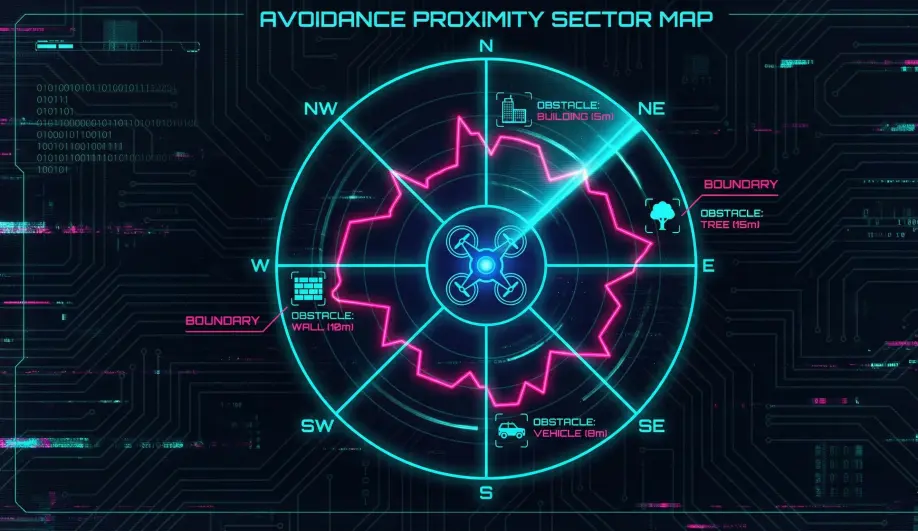
- The Boundary: Sensors populate a "3D Boundary," which is essentially a low-resolution polar grid (sectors) storing the closest obstacle in that direction.
- Fusion: If multiple sensors see an object in the same sector, the closest distance is used (Safety Conservative).
2. The Control Layer (AC_Avoid)
This library sits between the Pilot/Auto-Mission and the Position Controller.
- Input: Desired Velocity Vector ($V_{des}$).
- Logic: Checks if $V_{des}$ intersects with the Boundary.
- Output: Modified Velocity Vector ($V_{safe}$).
Codebase Investigation
1. Proximity Backend: AP_Proximity_Backend
Located in libraries/AP_Proximity/AP_Proximity_Backend.cpp.
- Drivers call
update()to fetch data from UART/CAN. - They push data into the boundary using
frontend.boundary.set_face_distance().
2. The Adjust Velocity Loop: AC_Avoid::adjust_velocity()
Located in libraries/AC_Avoidance/AC_Avoid.cpp.
- This is the core function called by
ModeLoiter,ModeAuto, etc. - Backing Up: It calculates if the vehicle is inside the safety margin (
margin_cm) and generates a "Back Away" velocity vector. - Limiting: If the vehicle is approaching an obstacle, it clamps the velocity component parallel to the obstacle vector.
Source Code Reference
- Proximity Core:
libraries/AP_Proximity/AP_Proximity.cpp - Avoidance Core:
libraries/AC_Avoidance/AC_Avoid.cpp
Practical Guide: Debugging Proximity Data
If avoidance isn't working, first check if the data is valid.
- Open MAVLink Inspector: Look for
DISTANCE_SENSORmessages. - Check
PRX_LOG_RAW: Set this to 1 to log raw sensor values to the SD card. - The "Fence" Display: In Mission Planner/QGC, ensure the "Proximity" overlay is enabled. You should see a red boundary line appear around the drone when obstacles are detected.
How To: Setup a 360° Lidar (RPLidar)
360-degree Lidars are the "gold standard" for omnidirectional awareness. Here is how to integrate a common unit like the RPLidar A2/A3.
1. Physical Connection
- Power: Most Lidars require a dedicated 5V BEC (they draw too much current for the Flight Controller's internal regulator).
- Data: Connect TX (Lidar) to RX (FC) and RX (Lidar) to TX (FC) on a spare Serial port (e.g.,
SERIAL4).
2. Configuration
Set the following parameters in Mission Planner:
| Parameter | Value | Description |
|---|---|---|
SERIAL4_PROTOCOL |
11 |
Set protocol to "Lidar360". |
SERIAL4_BAUD |
115 |
RPLidar typically runs at 115200 baud. |
PRX1_TYPE |
4 |
Select "RPLidar" driver. |
| PRX_ORIENT | 0 |
Default orientation (0 = Forward). Adjust if you mounted it rotated. |
3. Verification
- Reboot the flight controller.
- Open Mission Planner > Data Screen > Proximity.
- You should see a "radar" display showing points around the vehicle.
- Walk around the drone; the points should track your movement. If the points move with the drone when you rotate it, your compass or
PRX_ORIENTis incorrect.